Building a Form in Adapt Apps
This guide shows you how to build a form using the Adapt Apps Form Builder. This is the first step for anyone looking to create or manage Forms within the Adapt Apps platform.
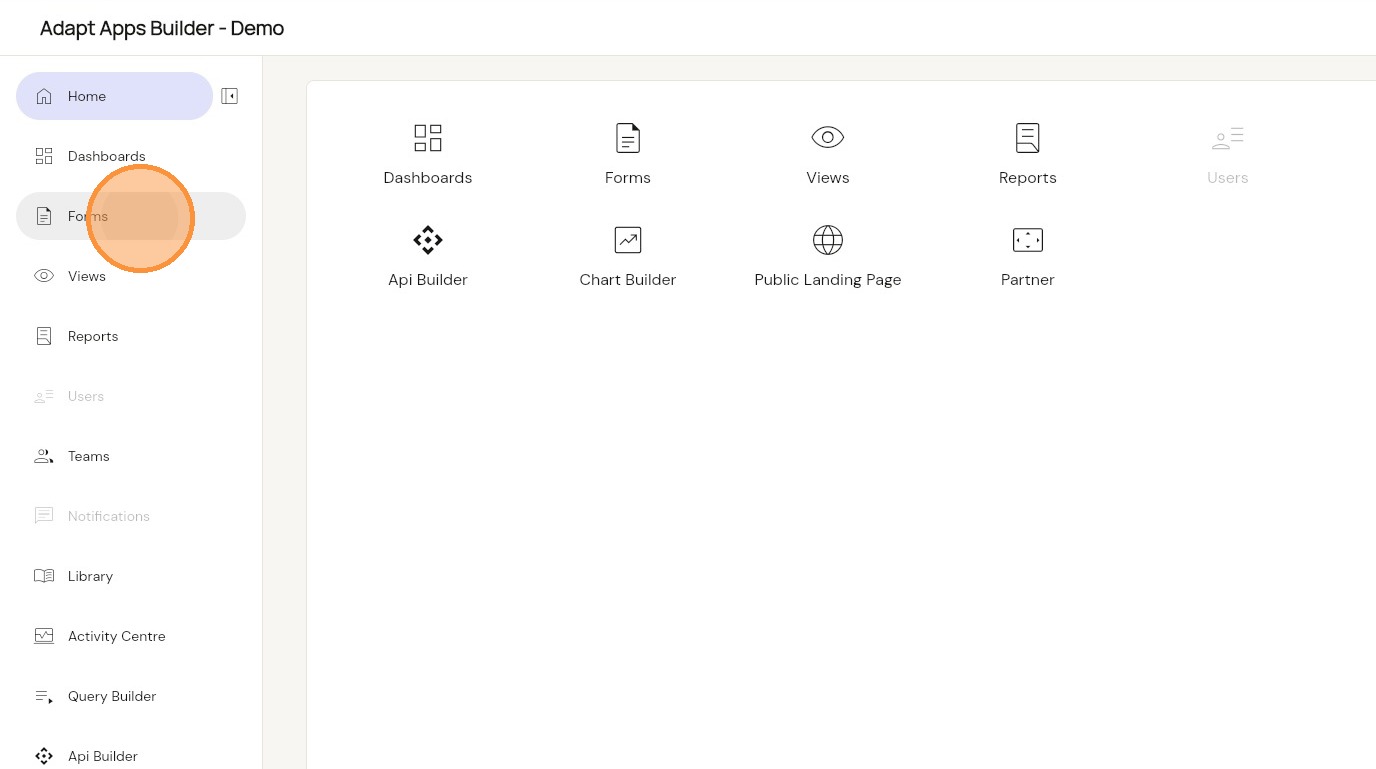
1. Select ‘Forms’ from either the side-panel or homepage.
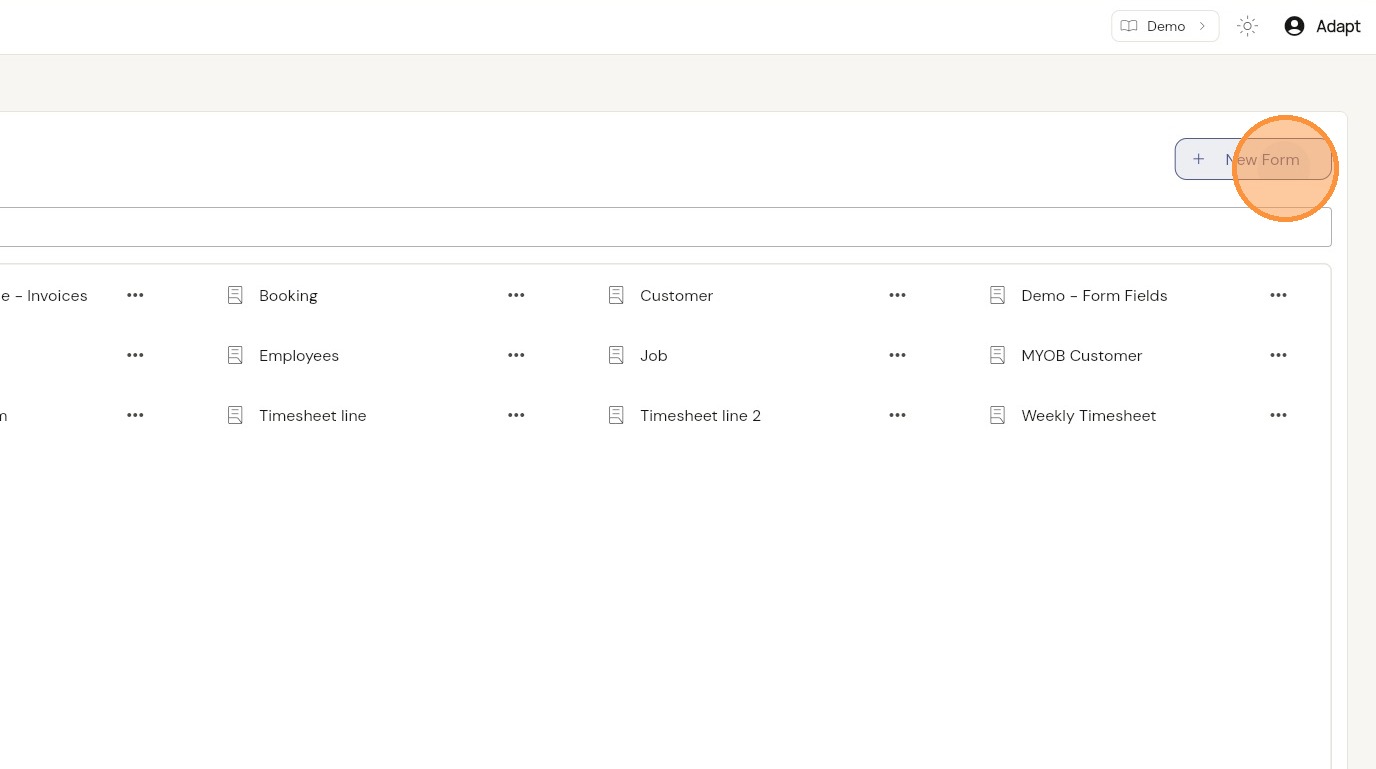
2. Click ‘New Form’ to create a fresh form, or select a form in the list to edit.
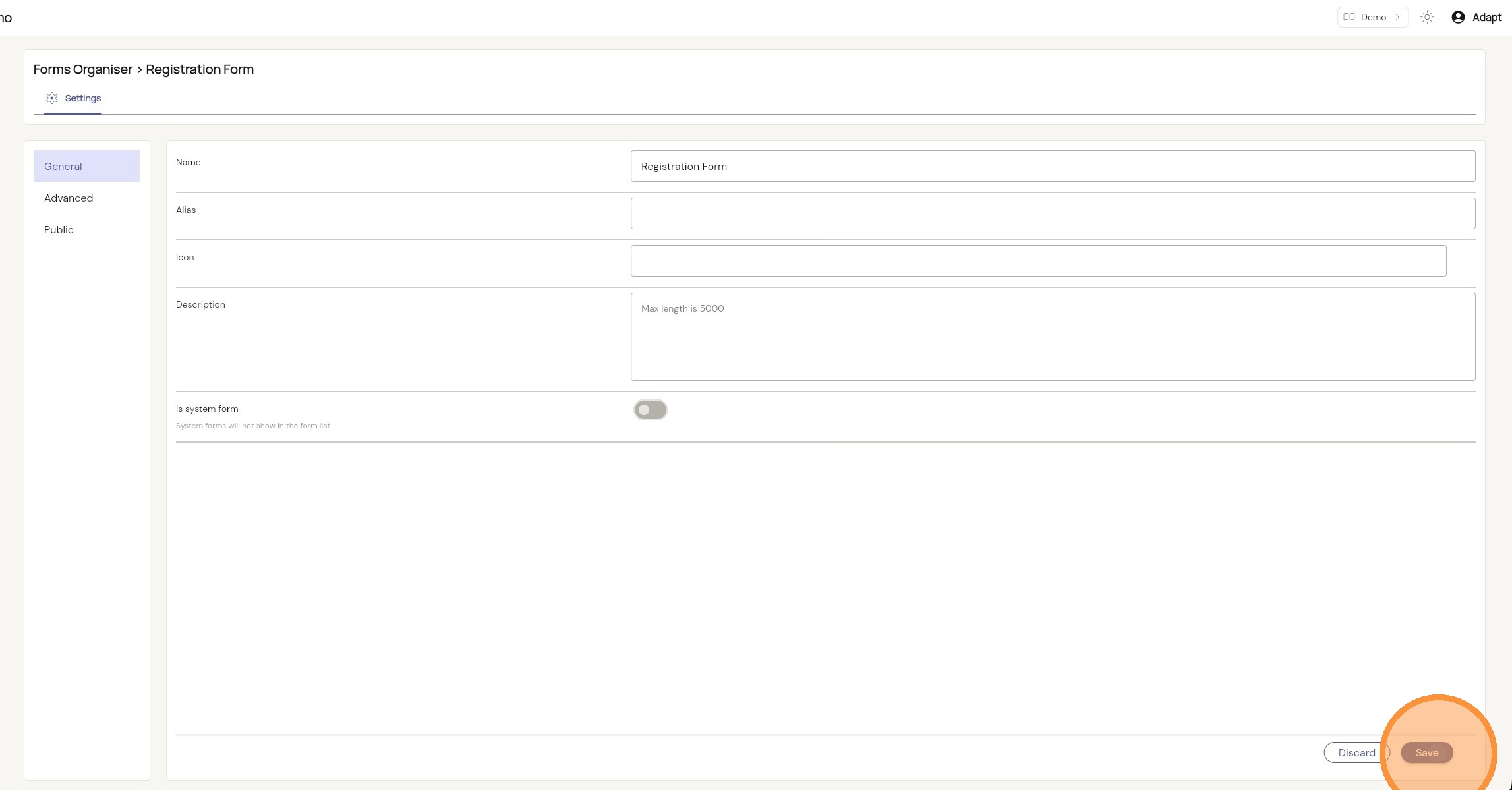
3. Give your form a name and click ‘Save’.
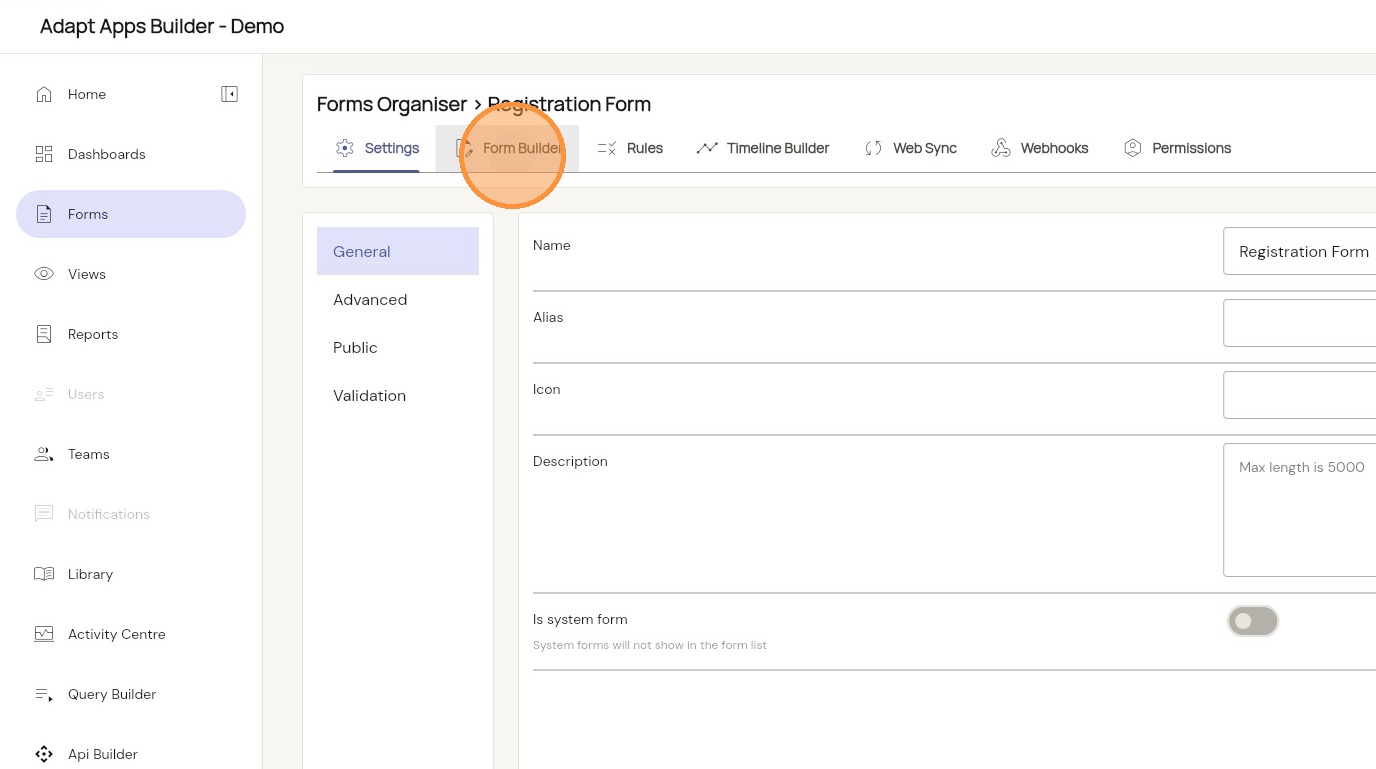
4. Once the form has been saved and created, click into the ‘Form Builder’.
5. Add any fields required for your form.
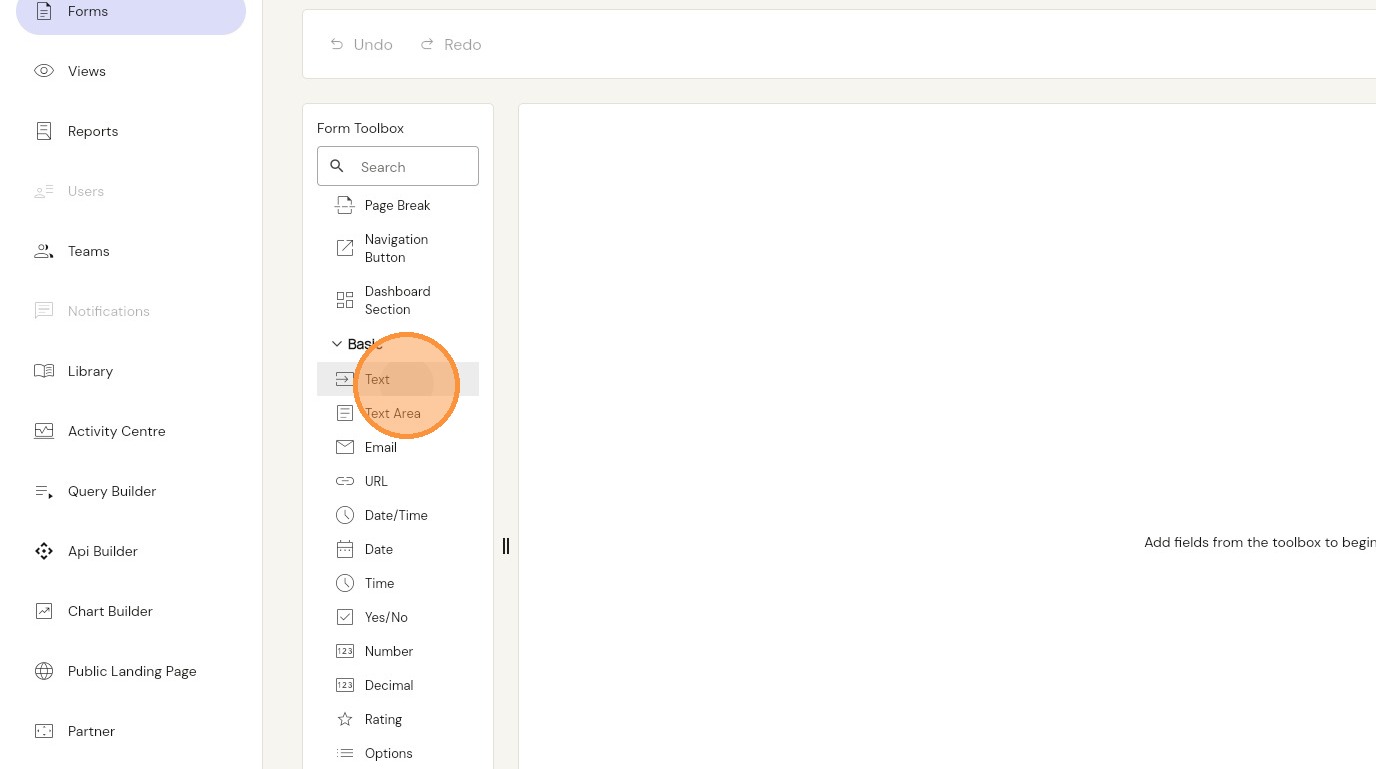
6. Add any fields required for your form.
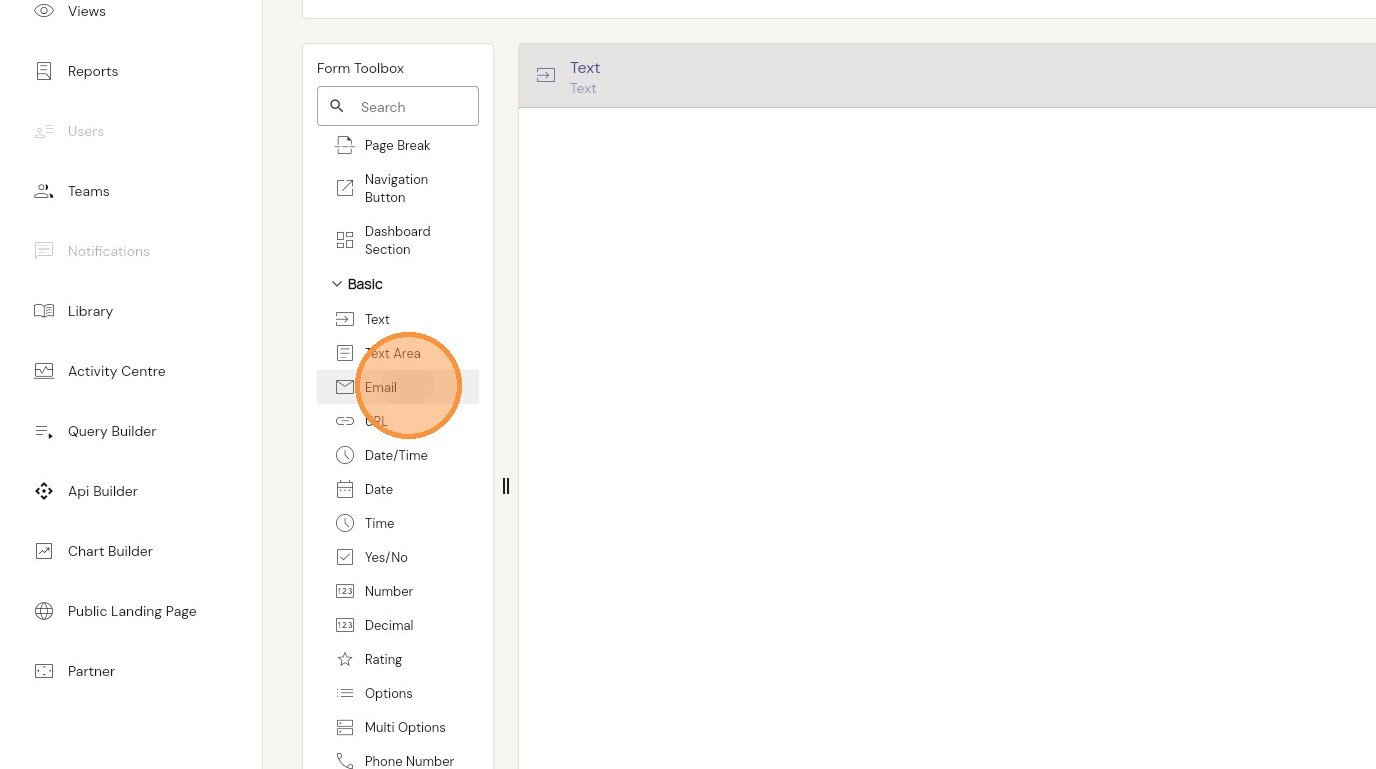
7. Add any fields required for your form.
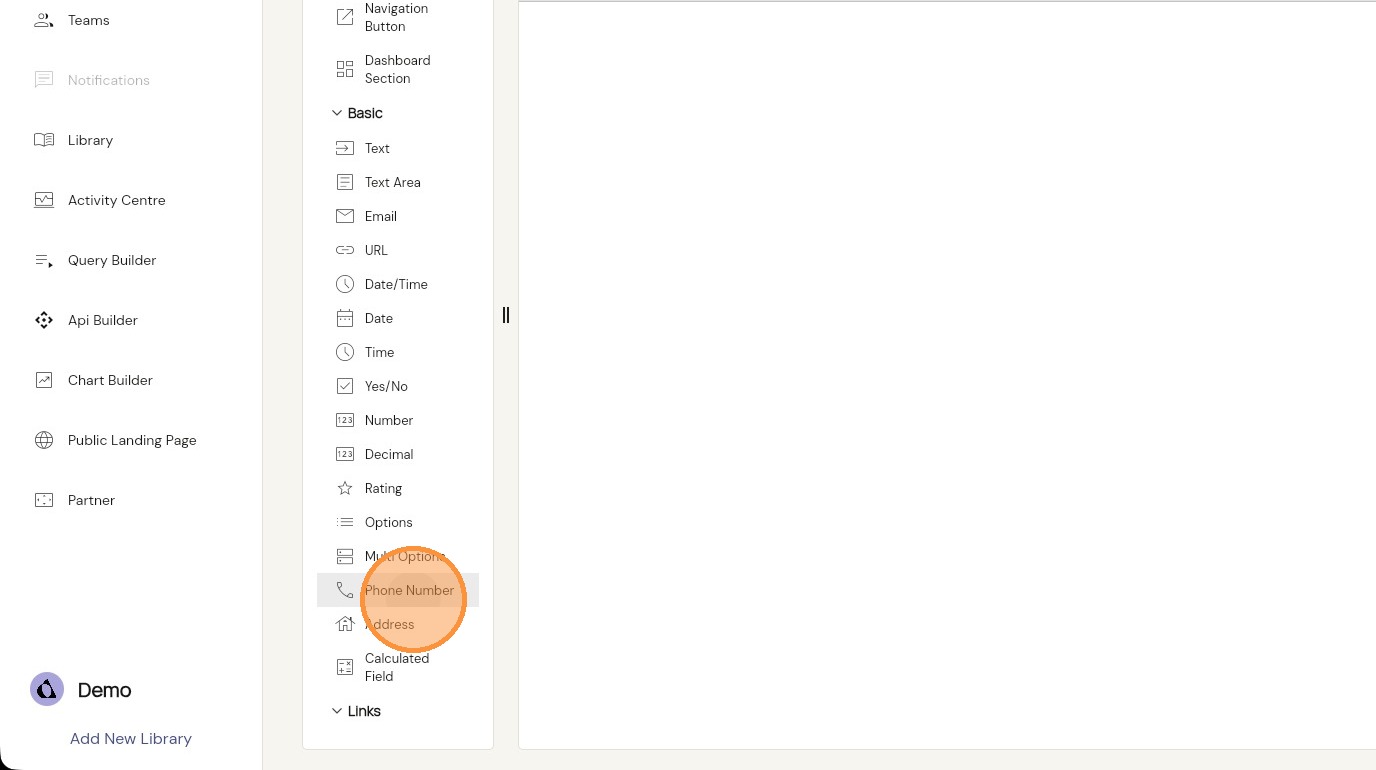
8. To edit a field in your form, select the desired field. The field settings will display on the right hand panel.
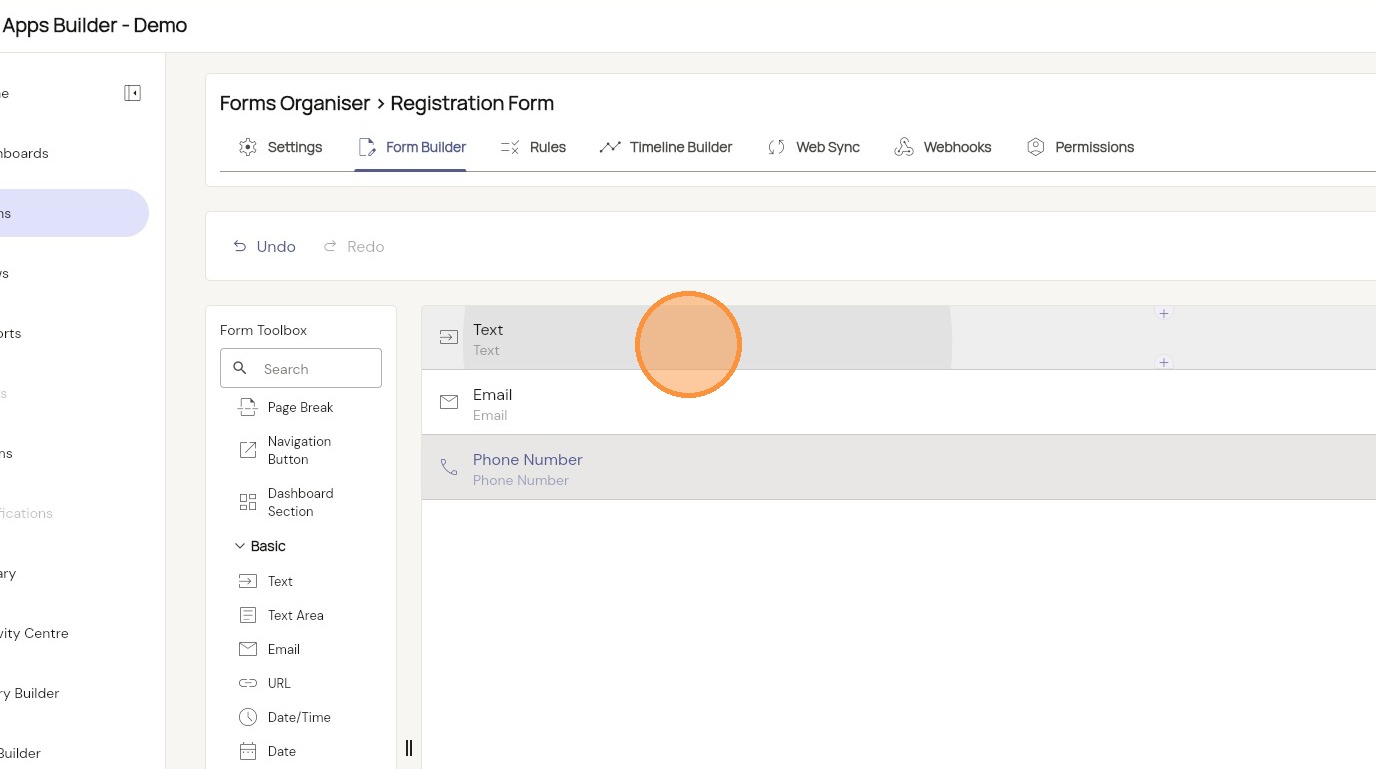
9. Here, you can change the field name, as well as other settings related to this field.
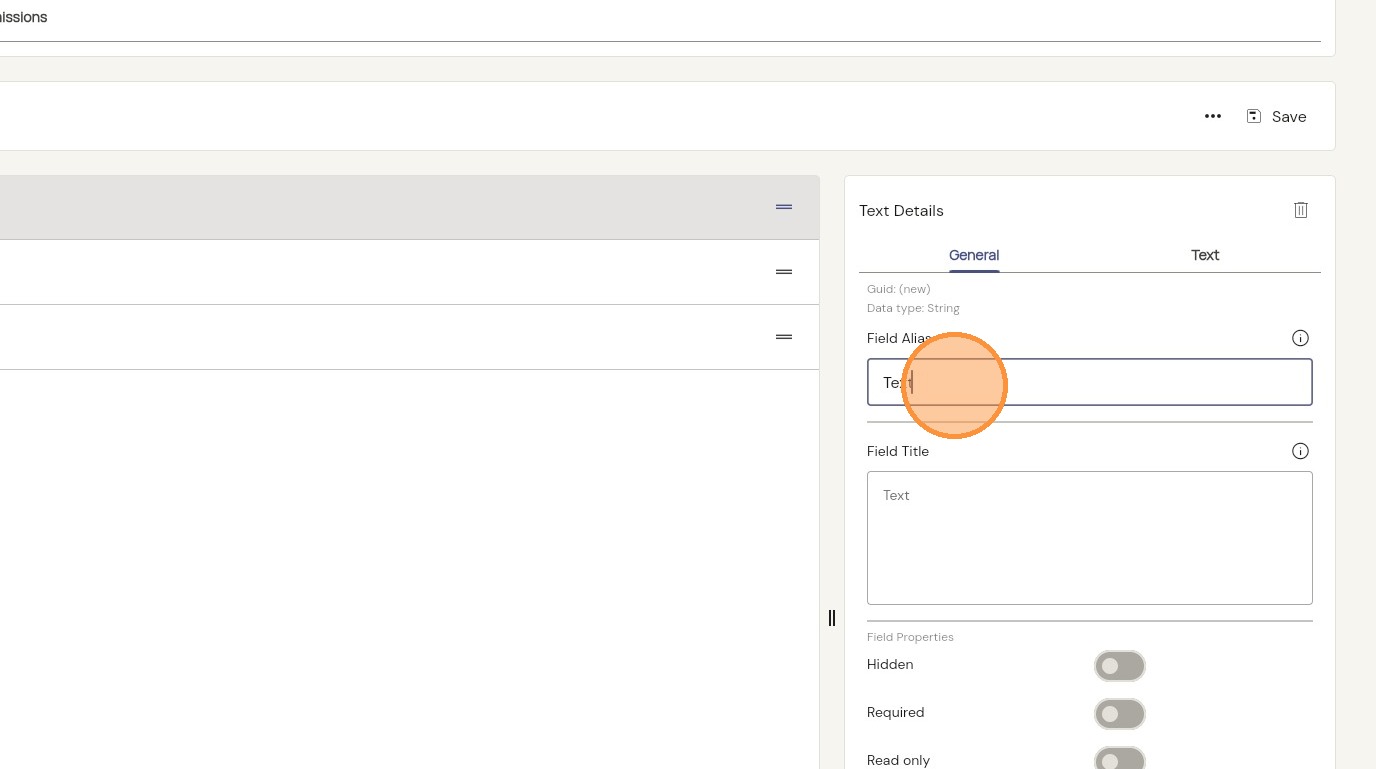
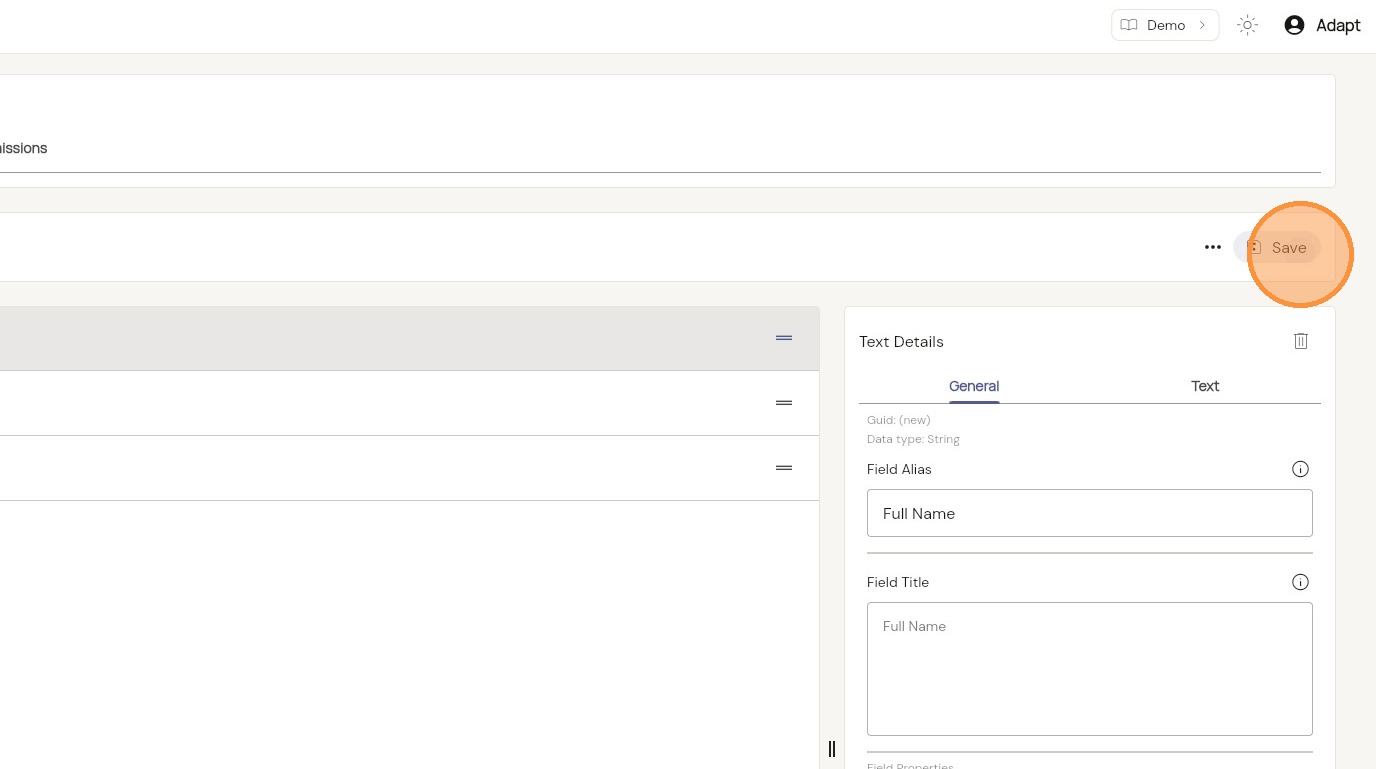
10. This text field’s Alias and Title have been updated to ‘Full Name’.
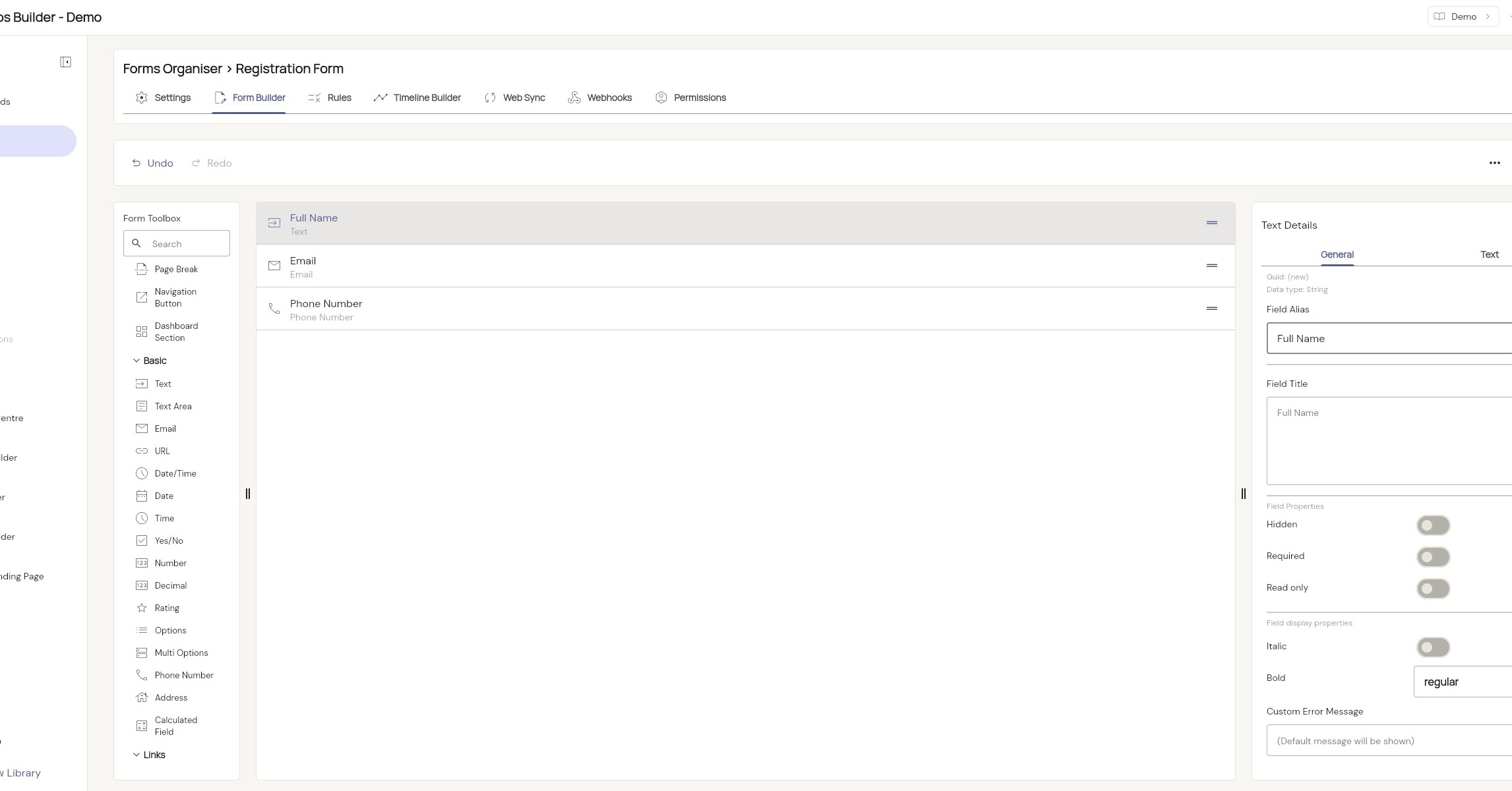
11. Once you are happy with all your changes, you can click ‘Save’ to save all your updates to this form.